Welcome to WorklogsJira: Simplifying Time Tracking in Jira
Worklogs Jira is more than just an app; it’s your essential tool for streamlining the time-tracking process in Jira.
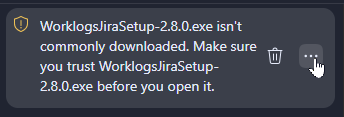
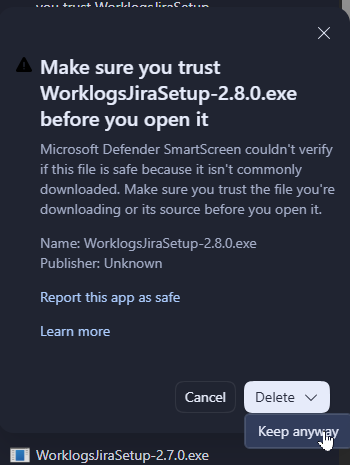
You can download the APP here!
Windows App
| Version | Description | Release |
| v.2.6.0 | Added – Per-day reminder toggle in settings: each working day now has its own enable/disable switch inside the «Days that will receive the reminder» section – Per-day custom reminder time: tapping the time shown under an active day opens a time picker for that specific day; a restore icon resets it to the global default – New localization keys for the reminder days section (`daysReceiveReminder`, `noWorkingDaysReminder`, `resetToDefaultTime`, `reminderDaysHint`) in English and Spanish Changed – Replaced the InputChip row for reminder days with a `SwitchListTile` list, one row per working day, showing the day name, its toggle and the effective reminder time – `_normalizeReminderDays` no longer resets per-day reminder choices on save/init; non-working days are still disabled automatically – «Enable reminder» subtitle now reflects the count of days with their individual reminder toggle active | 04/01/2026 |
| v.2.4.0 | Added * Automatic update checker on app startup Autocomplete for project prefix from Jira API with dropdown selector * Load user projects from Jira automatically in settings * Centralized GitHub configuration (app_config.dart) * Update notification dialog with release notes Improved * Unified Jira API version across the application (v2) Auto-uppercase and add dash to project prefix on selection * Better error handling for Jira API calls * Simplified project loading logic Changed * Moved GitHub repository configuration to centralized config file * Standardized Jira API usage throughout the app | 02/16/2026 |
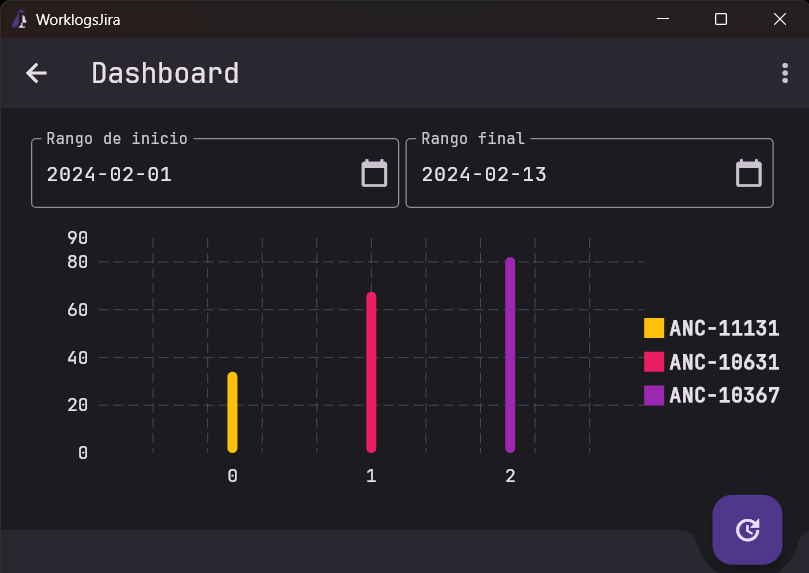
| v.2.3.0 | * Add pie chart and bar chart visualizations * Implement horizontal calendar showing daily logged tasks * Add date range filtering for dashboard * Remember last logged date in date picker * Center window on startup with minimum size 720×720 * Improve responsive layout for input fields * Add vertical scroll for dashboard content | 01/29/2026 |
| v.2.2.5 | Adapt Dashboard from email | 08/22/2024 |
| v.2.2.3 | Minor fixes | 03/05/2024 |
| v.2.2.2 | Delete password option | 02/22/2024 |
| v.2.2.1 | 02/13/2024 |
Forget about complex time-tracking processes. WorklogsJira simplifies this task, allowing you to log your worked hours quickly and accurately.
WorklogsJira
| Steps | Image |
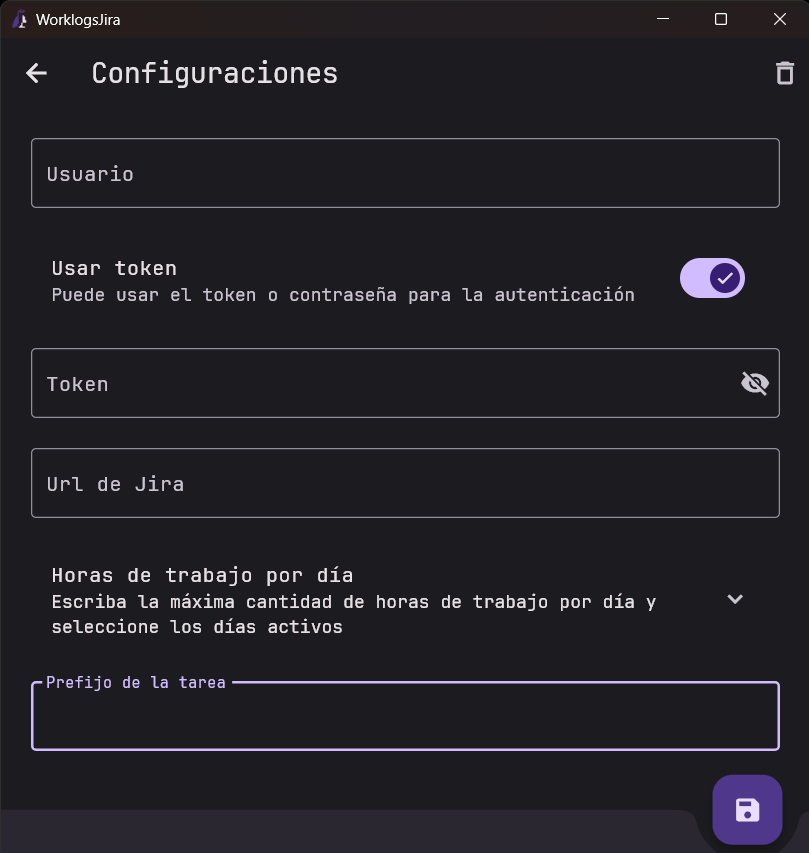
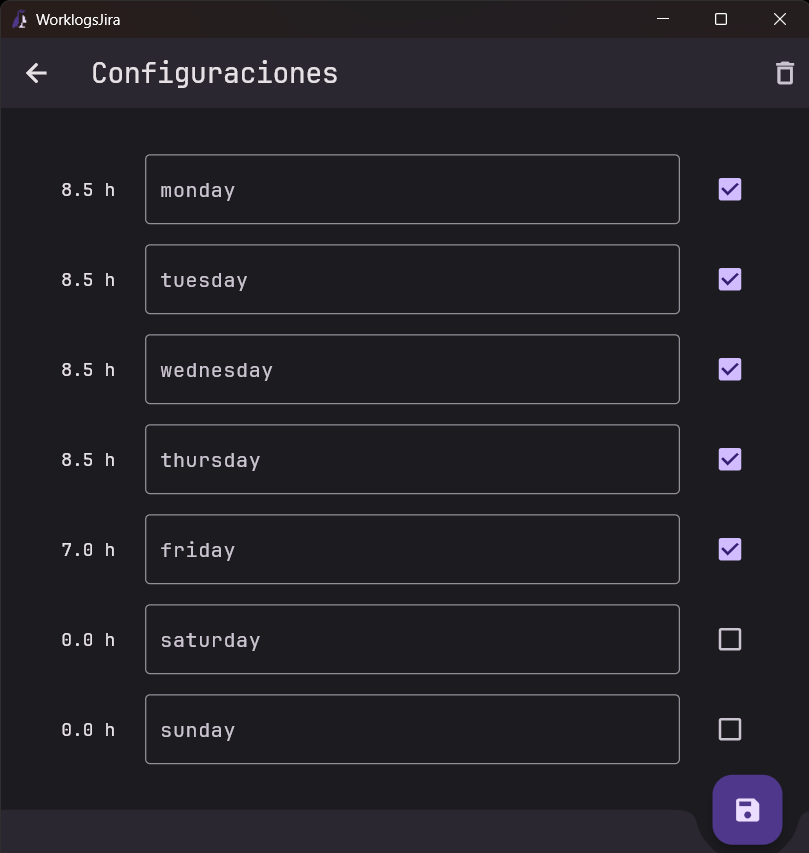
| 1- Go to Settings and set params. You should complete almost all params. * Put user and toke(Basic auth has been disabled) * Put Url’s Jira – For ex: https://jira.domain.com or https://domain.atlassian.net/jira (Note: you don’t have to put a slash in the final URL) * Set daily hours – For ex: 7h or 8h or 8.5h. | ![]() |
| 2- Finally, you must Save the parameters in the below button. (If you can set a specific param at another moment, it doesn’t necessarily fill all fields again) | ![]() |
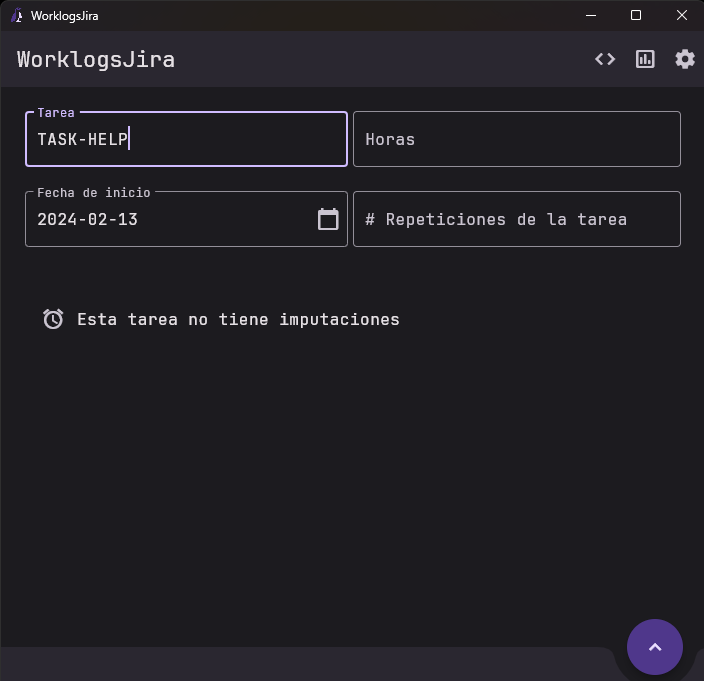
| 3- On the main screen have two options: load and log the work of Jira * Load Work: You have to write the task/issue in the Task’s field * Log Work: You have to write different fields such as the task, the hour, the start date , and repetitions (this field is optional) * Note: The calendar and the hour’s field are set by maximum daily hours in settings. – For ex: If you put 8h but in the settings, that day is 7h, you’ll log 7h. | ![]() |
| 4- You can watch all tasks/issues on the Dashboard screen | ![]() |
IF YOU NEED HELP